Put workers and chats together in a team, choose who answers, run the team on a schedule, and start a flexible worker from a Marketplace worker template.
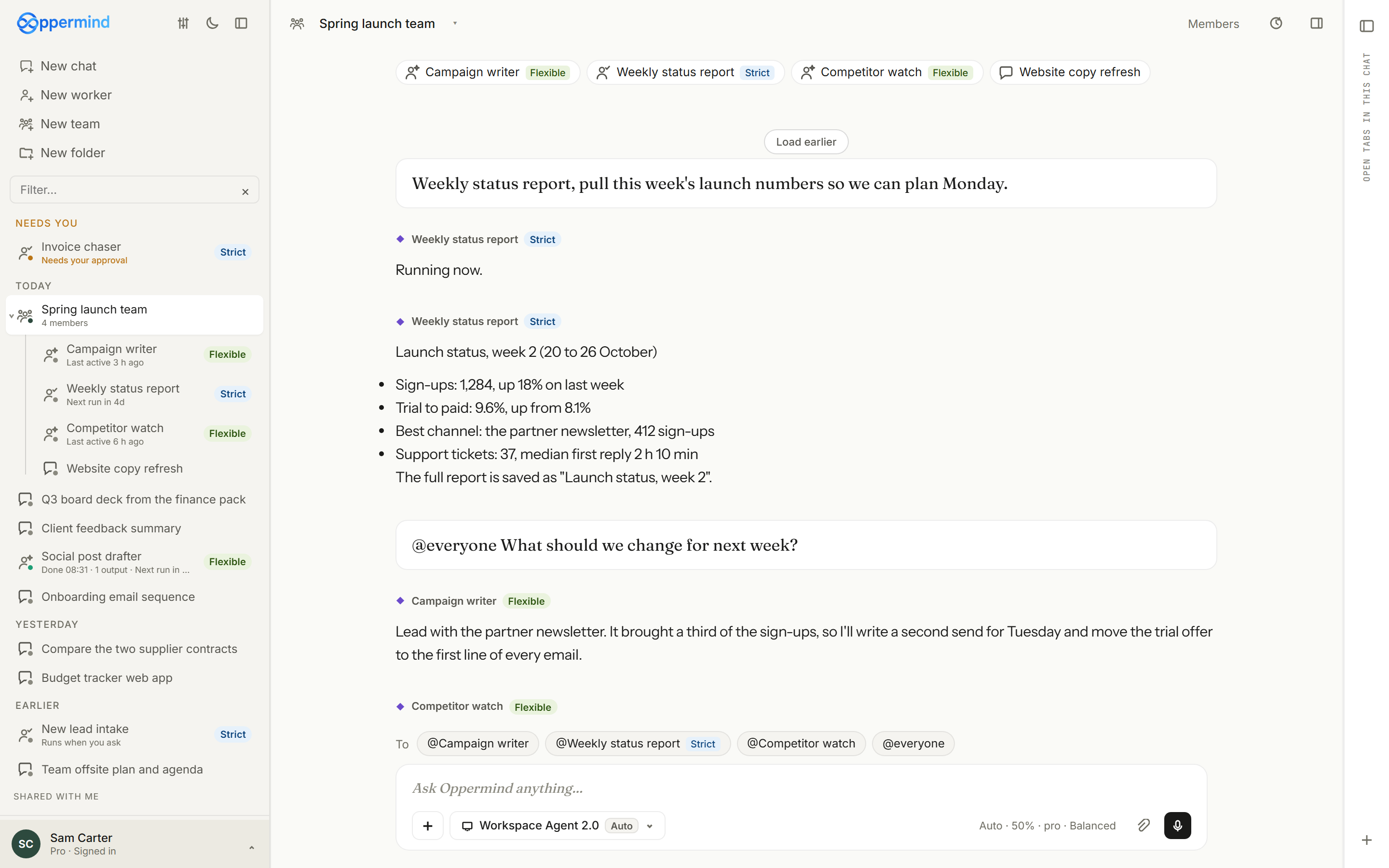
Group chats are now teams. Choose New team in the sidebar, give it a Team name and pick members from Flexible workers, Strict workers and Chats, up to 8, with an optional role for each; Create team opens the room. You can also right-click a worker or chat and choose Add to team, and each one can be in one team at a time.
Launch teamMembers
Mia · Head of ResearchFlexibleWorkTheo · BrandFlexiblePriya · FinanceFlexible
@everyone Welcome to the launch team. We're building an online shoe store, Australia first. As each of you finishes, post what you made and what you'd flag.
Mia · Head of ResearchFlexible
On it. The opportunity brief is in Doc Manager: market size, five competitors, three supplier options with landed cost. Flag: supplier lead times to Australia run 12 to 20 days.
To@Mia · Head of Research@Theo · Brand@Priya · Finance@everyone
Ask Oppermind anything…
AutoAutoAuto · 50% · Pro · Balanced
A team room: the same feed and message box, each reply under its member's name.
Try this
✦New team → Team name: Launch team. Add Mia · Head of Research, Theo · Brand and the Weekly pipeline summary worker, then Create team.
What you getThe room opens with the three members in a row at the top, ready for your first message.
Who answers in the room
Flexible members answer the way group chats did: with nobody picked or @everyone, every flexible worker answers, and @Name narrows it. A strict worker runs only when you pick it, then posts its result back to the room, or tells you it is waiting for your approval. Chats in a team never answer in the room.
Strict members run only when you pick them, so the room stays predictable.
Try this
✦Pick @Weekly pipeline summary in the chips above the message box and type:
Run this week's summary and post it here.
What you getThe strict worker replies that it is running, follows its taught steps and posts the summary in the room; flexible members stay quiet because you did not pick them.
Send to team from a member chat
A chat that belongs to a team has Send to team in its title menu. It opens a small box with the chat's last reply, which you can edit before you choose Send, and the team sees it in its room.
Shortlist three dropshipping suppliers that ship sneakers to Australia in under 10 days.
◆ Lato · Pro
Shortlist, with lead times to Australia: Supplier A, 6 to 9 days; Supplier B, 7 to 10 days; Supplier C, 8 to 10 days. All three offer tracked shipping; check their returns terms before you commit.
Send to team passes a reply like this to the room, after you edit it.
Try this
✦In the supplier chat that is part of Launch team, open the title menu, choose Send to team, trim the text to the shortlist and choose Send.
What you getThe shortlist appears in the Launch team room under your name and the chat's title.
Run a team on a schedule
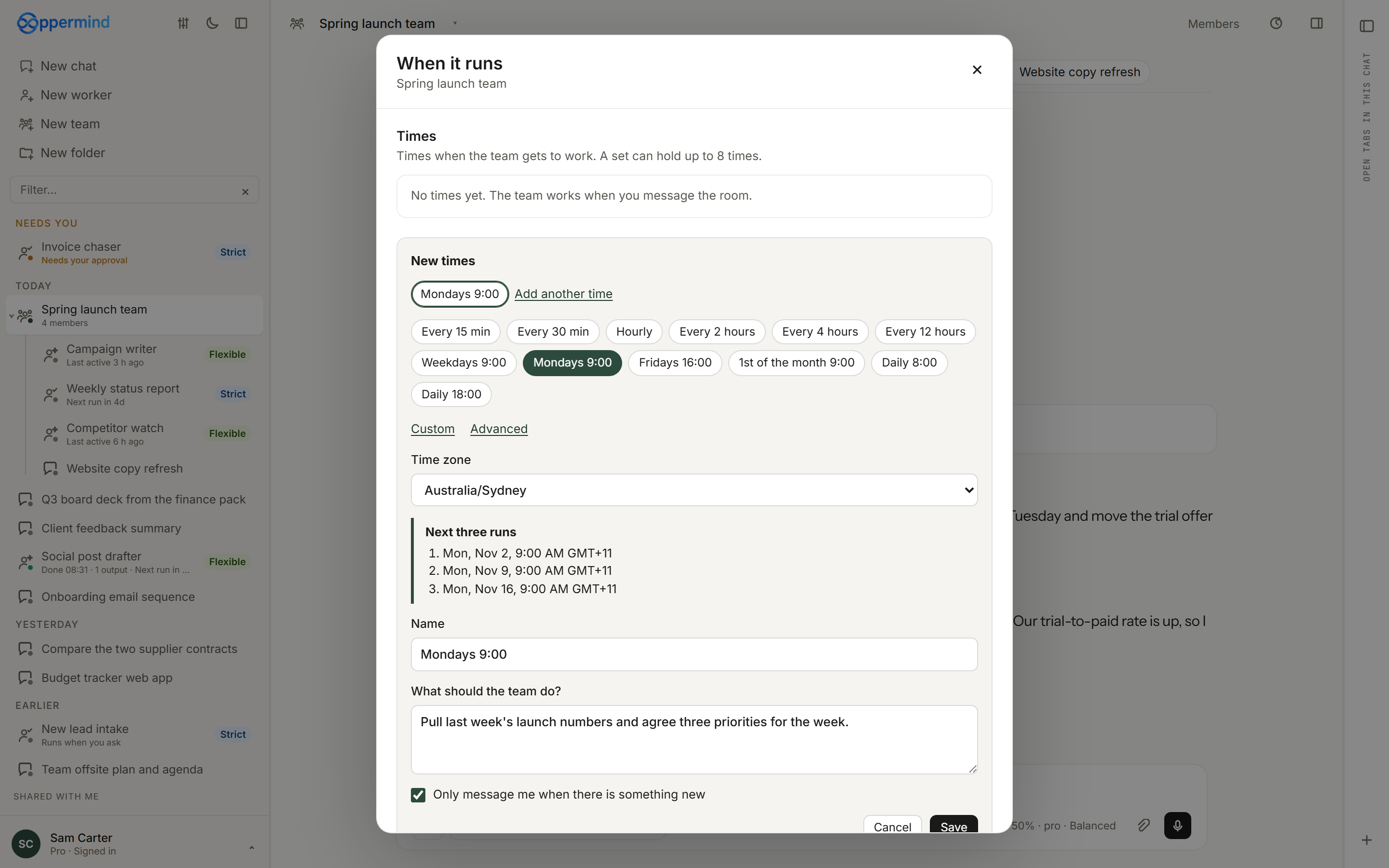
Teams run on a schedule like workers. When it runs in the room's top bar adds sets of up to 8 times, each with what the team should do, and can bring the team in when a webhook or connected account event arrives. With no times, the team works when you message the room.
The same When it runs screen sets times for teams and workers.
Try this
✦In Launch team, open When it runs, choose Add a time, pick Mondays 9:00 and write:
@everyone Post a one-line status and anything blocking you.
What you getNext three runs shows the coming Mondays, and each Monday at 9:00 the message posts in the room and the flexible members answer.
Manage members and history
Members in the top bar adds, removes and reorders members and sets their roles; stop the discussion before changing members. To remove one quickly, point at it in the row at the top of the room and use its remove button; removing never deletes it, and it goes back to your list. Load earlier at the top of the room shows older messages.
Launch teamMembers
Cloud · Priya · Finance is working1m 12sStop
Mia · Head of ResearchFlexibleTheo · BrandFlexiblePriya · FinanceFlexibleWorkSam · EngineeringFlexible
@Priya Turn the plan and the model into a ten-slide investor deck.
Priya · FinanceFlexible
Building the deck from the model now. The unit economics slide will use the assumptions sheet so every number matches.▍
To@Mia · Head of Research@Theo · Brand@Priya · Finance@Sam · Engineering@everyone
Ask Oppermind anything…
AutoAutoAuto · 50% · Pro · Balanced
Members in the top bar keeps the team current; each reply carries its member's name.
Try this
✦Point at Theo · Brand in the row at the top of Launch team and remove it, then scroll up and choose Load earlier.
What you getTheo leaves the team and shows as its own row in the sidebar again; older room messages load above the ones you had.
Start from a worker template
Marketplace, in the sidebar, has three tabs: Connectors, Skills and Worker templates, with three featured under Start with a worker: Morning briefing, Project coordinator and Research assistant. Open a template to read its Instructions, Memories, Skills, Routines and Integrations, then Import worker makes your own flexible worker with its goal and job filled in. No personal memories and no creator credentials come with a template.
An imported template becomes your own flexible worker, with its job ready to check.
Try this
✦Open Marketplace, choose Worker templates, then Project coordinator. Read Instructions and Routines, then choose Import worker.
What you getYour own flexible worker opens with the template's goal and job filled in for you to check.
Set up an imported template
A template's routine arrives Not enabled; when you are ready, ask the imported worker to set a schedule and it asks for your timezone and timing. Skills that come with a template stay with the imported worker, and Add skill in the Marketplace Skills tab puts a copy of a skill in your Skills library. You can also reach templates from a new flexible worker's first card with Start from a template.
Set up your weekly check-in for Monday mornings.
◆ Lato · Pro
Happy to. Which timezone are you in, and what time on Monday should the check-in run?
An imported worker asks for your timezone and timing before it schedules anything.
Try this
✦In your imported Project coordinator's chat, type:
Set up your weekly check-in for Monday mornings.
What you getIt asks for your timezone and the time you want, then the check-in shows in its When it runs list.
GUIDED LEARNING
Practise this in Oppermind Academy
Follow the related tutorial or course and apply the concept to a real task.