Workflows and apps
Oppermind Desktop
The Windows app: install it, find your way around the window and Desktop settings, show Lato on your desktop, keep chats, workers and teams there as widgets, and speak instead of typing.
Updated 26 Oct 2026
Install and sign in
Oppermind Desktop is the Windows app. Download it from Settings, Apps and extensions, or from the Desktop Co-pilot panel with Download Oppermind Desktop (Windows), then run the installer and sign in the way you do on the web; a browser sign-in hands back to the app on its own. The window is your whole workspace: chats, workers, teams, editors and Doc Manager.
Apps and extensions
Use Oppermind where you already work.
The window
The top-left button opens the app menu with File, Edit, View, Go and Help, and the This computer button beside the window controls opens Desktop settings. Editors can pop out into their own window, and every download or export shows a bubble at the top right with Show in folder. With Keep running when the window closes on, closing the window leaves the app running in the system tray.
 This computer
Desktop settings and updates
Desktop settings starts with Computer control: one switch for Any app on this computer, Pause, the screens Lato can use, and the status of Chrome, Edge, Word, Excel, PowerPoint and your phone. Below it are Desktop buddy, Local MCP servers, Startup and windows, Appearance, and Updates and support, where Export diagnostics leaves out your conversations, files and credentials. Updates install by themselves while you are not using the app; if one has waited a couple of days, Oppermind tells you a minute before it restarts, and Restart and install lets you do it sooner.
This computerAllow the account signed in to Oppermind to use computer control on this PC. Lato will be able to see your whole screen and send pictures of it to Oppermind while the agent runs. Your existing control permissions apply to Lato. Devices signed in to this account can also view and control this PC while the agent runs.
The app's own questions
Anything the app needs to ask opens as a dialog in the app's own style, for example Quit with unsaved changes, Authorize this computer, Resume computer control, Restart to install the update and Log out of Oppermind. A popped-out editor with unsaved changes asks Leave this editor? with Keep editing and Close editor. Read the question before you answer, or choose Cancel to go back.
This computerSave your work before quitting to keep your changes.
Show Lato on your desktop
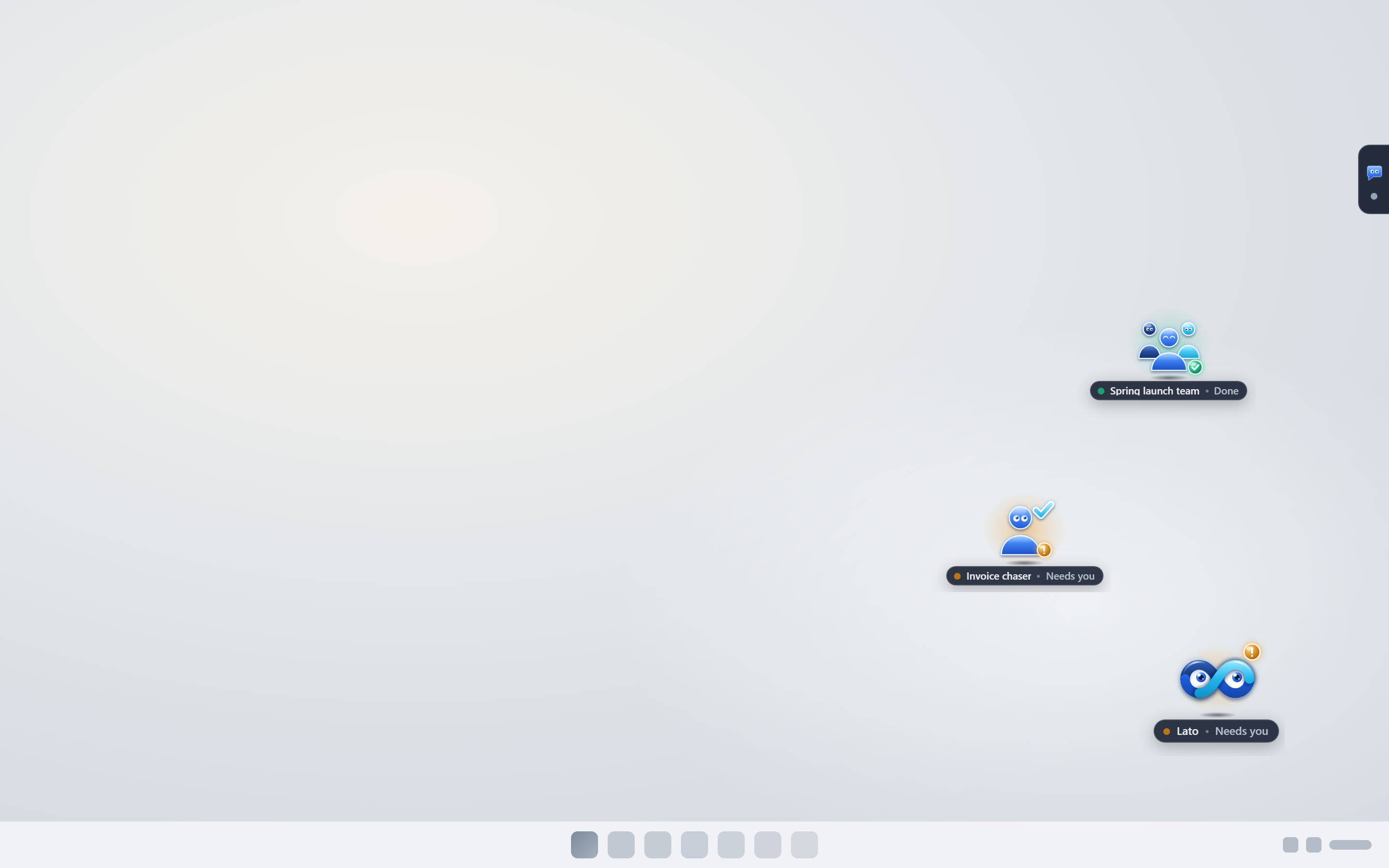
In Oppermind Desktop on Windows, choose Show Lato on desktop in the account menu, or turn on Show Lato on the desktop under Desktop buddy in Desktop settings. Lato then floats in a small window above your other apps; drag it anywhere, or drop it at the left or right edge of the screen to tuck it away as a tab that peeks out when you point at it. It hides while the Oppermind window is in front unless you turn off Hide while Oppermind is in front, and it is kept out of the pictures Lato takes of your screen during computer control.
Use Lato's quick chat
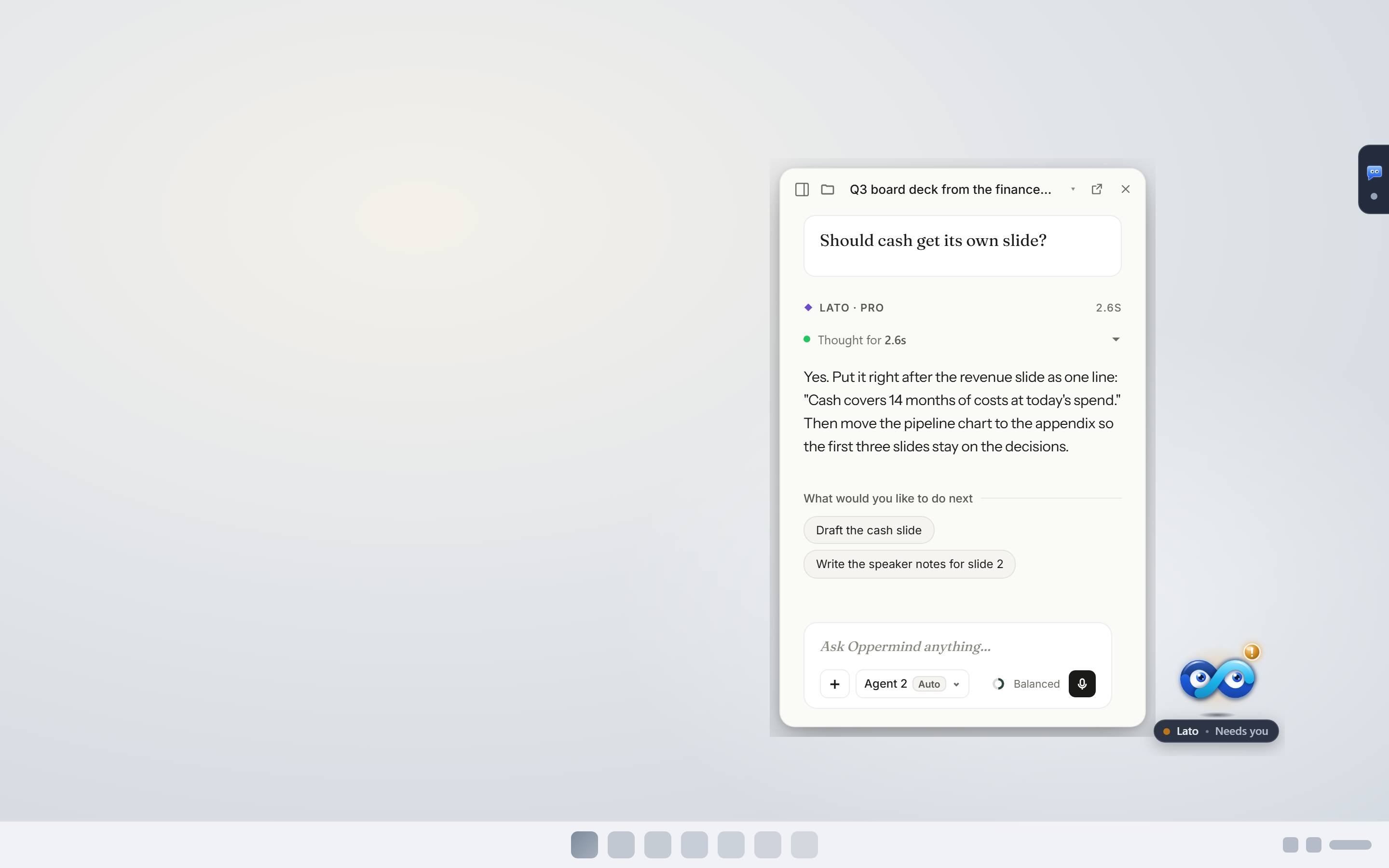
Click Lato for a quick chat without opening the full app: a small window with the chat's title, the conversation, Open in Oppermind, and the same message box as the app, with its + menu, chips and send button. Point at Lato for New chat, Talk to Lato, Updates when a worker or team has finished or needs you, Open Oppermind and More. Lato's label shows Listening, Working, Done or Needs you, and nothing when it is idle.
Put a chat, worker or team on the desktop
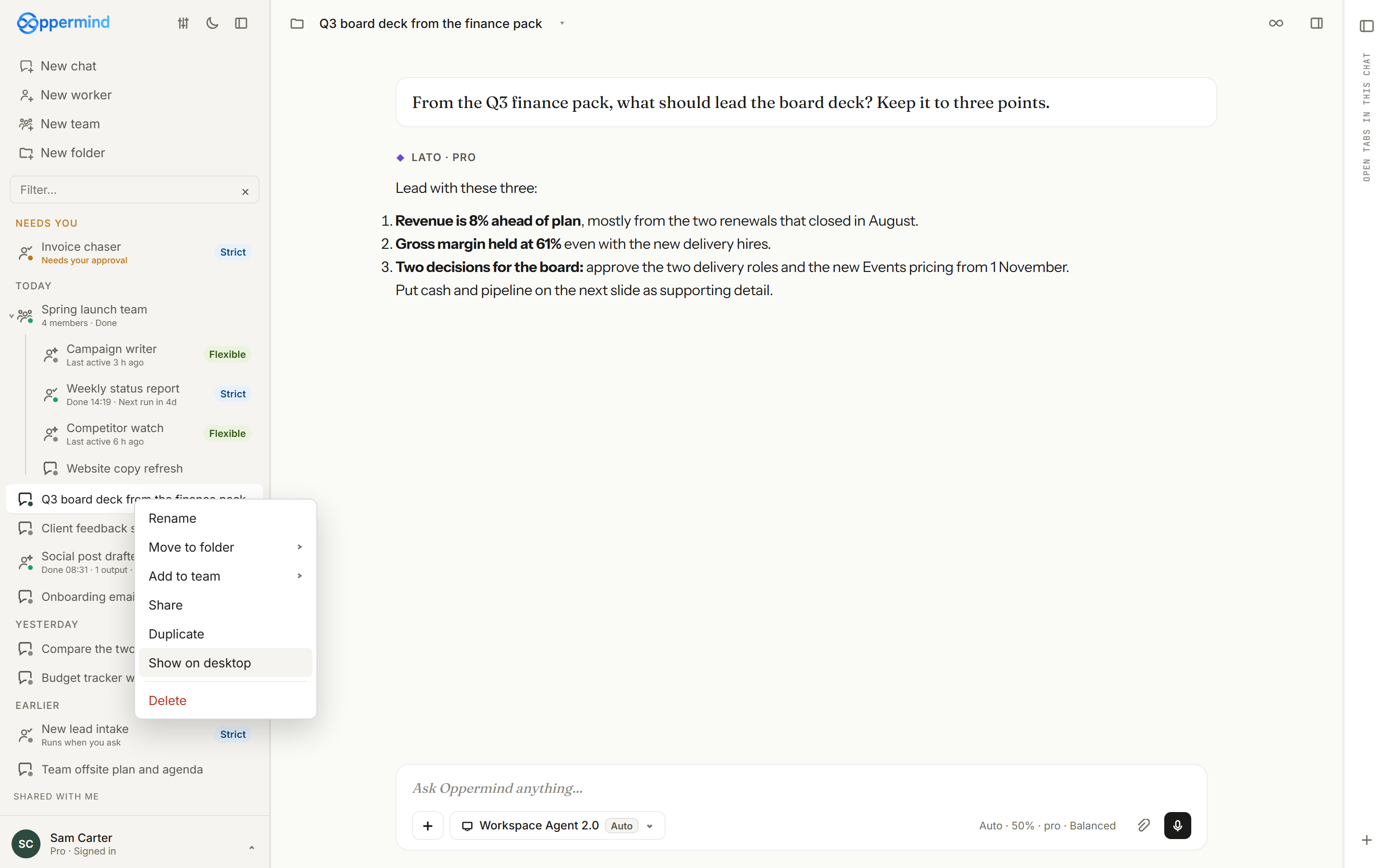
While Lato is shown, choose Show on desktop from a row's right-click menu or its hover icon in the sidebar, or from the button in a chat, worker or team header. Each one becomes its own small widget with its status, up to six at a time; click it to talk to just that one, or point at it for Open in Oppermind and Hide from desktop. Widgets tuck away at the screen edge the same way Lato does.
Speak instead of typing
Voice input works in Oppermind Desktop: with the message box empty, click the microphone, speak, and your words appear in the box. The microphone turns off as soon as you stop, and Talk to Lato opens a quick chat that is already listening. Voice input counts toward your plan's usage.
Practise this in Oppermind Academy
Follow the related tutorial or course and apply the concept to a real task.