The Oppermind add-in for Word, Excel and PowerPoint has a new panel. Lato reads the file you have open, makes the changes you ask for and shows each step as it works, using the same Oppermind account and plan as the web workspace. Open it from Home, then Oppermind.
Each step shows in the panel, so you can see what Lato changed and where.
Try this
✦In Word, with customer-agreement.docx open, highlight the termination clause, click Home then Oppermind and type:
Rewrite this clause in plain English at the same length, keeping every obligation.
What you getThe panel lists each step, the clause is rewritten in the live document, and the reply says what changed.
Install from a computer
Open Settings, Apps and extensions, then download the Office add-ins package. Register the catalog with the included Windows or macOS script, restart Office, and enable Oppermind from the add-ins controls.
SettingsLatoAI preferencesMemorySkillsCommandsBrand kitVoiceConnectionsConnectorsAppsApps and extensionsDeveloperDeveloper API
Apps and extensions
Use Oppermind where you already work.
Oppermind DesktopThe Windows app: your whole workspace plus the computer co-pilot that reads your screen, types and runs jobs on your PC.Download for Windows
Word, Excel and PowerPointA task pane that reads your selection and edits the open document.Download add-ins (.zip)
Chrome extensionSide panel on any page; chat with page context; drive the tab.Open Chrome Web Store
iPhone and AndroidThe full product in your pocket, plus the keyboard and share sheet.Get the app
Settings → Apps and extensions: download the add-ins package and install it from a computer.
Try this
✦On your computer, open Settings, Apps and extensions, click Download add-ins (.zip), unzip it, run the included Windows or macOS registration script, restart Word, then enable Oppermind from the add-ins controls.
What you getAfter the restart Word's Home tab shows an Oppermind button, and Excel and PowerPoint pick up the same catalog.
Choose how Lato changes the file
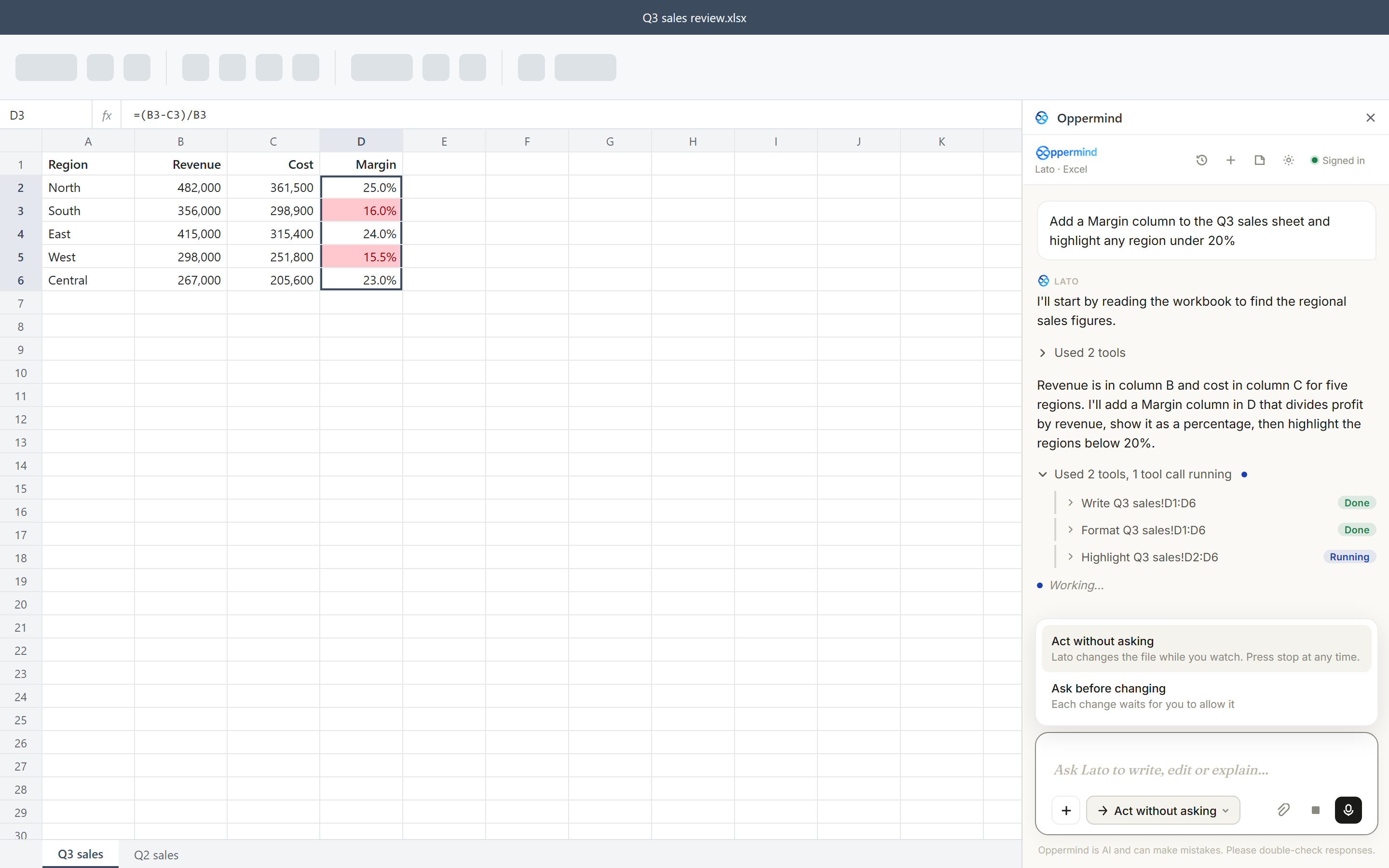
The mode button in the message box sets how changes happen. Act without asking lets Lato change the file while you watch, and Stop ends the run at any time; Ask before changing shows each change as a card with Allow, Allow all for this task and Skip. Settings, How Lato works sets the same choice as Act or Ask first.
Lato · ExcelSigned in
Add a Total row under the table on Sheet1 and make it bold.
Lato
Read Sheet1!A1:D14Done
Reading Sheet1. Adding row 15 with totals for columns B to D▍
Working…
Ask Lato to write, edit or explain…
Act without asking
Oppermind is AI and can make mistakes. Please double-check responses.
While Lato works, Stop ends the run at any time.
Try this
✦With Act without asking chosen, type:
Add a Total row under the table on Sheet1 and make it bold.
What you getThe panel lists each step as Lato writes the totals; press Stop at any time to end the run, or switch to Ask before changing to allow or skip each change.
Point at what you mean
Select text, cells, a picture, chart, table or shape and it shows as a tag in the chat box, such as 42 words selected or B2:F14 selected, and goes with your next message; close it with × to leave it out. The + button adds files, skills, brand kits and connectors, and with a brand kit tagged, Lato uses its fonts, colors and logo in what it adds. Voice input lets you speak your request instead of typing.
Search files, skills, brands, connectors, apps…
FilesSkillsBrandsConnectorsApps
Pick a brand kit for this chat - its colours, fonts & voice shape what the AI makes.
No brand kitPlain output - ignore brand styling this chat
Northlight Studiopptx✓
Northlight Eventspdf guide · shared by Priya
Manage brand kits →
Ask Oppermind anything…
AutoAutoAuto · 50% · Pro · Balanced
The + picker has the same tabs as the app: Files, Skills, Brands, Connectors and Apps.
Try this
✦Select slides 3 to 5 in PowerPoint, tap + and choose the Northlight Studio brand kit, then type:
Restyle these slides to match the brand.
What you getThe slide selection and the brand kit show as tags, and Lato applies the kit's fonts and colors to those three slides.
What Lato can do in each app
In Word, Lato can write and format text, build tables, add comments, turn on track changes and set up headers and footers. In Excel, it can write values and working formulas, format cells, and add sheets, tables, charts and conditional formatting; in PowerPoint, it can add, duplicate, move and delete slides, and add or change text, shapes, tables and pictures. Ask for a chart in Word or PowerPoint and it adds one with its data inside, so you can edit it later.
Lato · PowerPointSigned in
Build a six-slide onboarding deck for new warehouse staff: safety, shifts, equipment and who to ask, with a picture on each slide.
Lato
Read the selectionDone
Added six slides: Welcome, Safety, Shifts, Equipment, Who to ask and Your first week, each with a picture. Check the order and wording before you share the deck.
Slide 1 selectedselection×
Ask Lato to write, edit or explain…
Act without asking
Oppermind is AI and can make mistakes. Please double-check responses.
Slides are built in the presentation you have open.
Try this
✦In PowerPoint with a blank presentation open, type:
Build a six-slide onboarding deck for new warehouse staff: safety, shifts, equipment and who to ask, with a picture on each slide.
What you getLato adds the slides step by step in the open presentation; you step through them to check order, wording and pictures.
Reopen chats or use the Classic assistant
History reopens your earlier chats from that app, and documents, sheets and decks made in the add-in show in your Oppermind chat history as cards that open in the editor. The earlier assistant is still in Settings as Classic assistant, the earlier Insert and Replace pane.
Lato · WordSign out
sam@northlight.studioAuto ▾
Selection (412 chars)Refresh
Fix grammar and spelling in the selection.
Lato
Corrected six errors and one run-on sentence; the meaning is unchanged.
↓ Insert⇄ Replace selection
Ask Oppermind to edit or explain…
→ Ask first ▾
Oppermind is AI and can make mistakes. Please double-check responses.
Classic assistant: the earlier pane with Insert and Replace selection.
Try this
✦Click History in the panel and open yesterday's chat about the budget workbook.
What you getThe conversation reopens in the panel so you can carry on where you left off.
GUIDED LEARNING
Practise this in Oppermind Academy
Follow the related tutorial or course and apply the concept to a real task.
 Lato · ExcelSigned in
 Lato
Lato