
Get started
Workspaces and files
Organize context, sources, conversations, and outputs around a piece of work.
Updated 30 Sept 2026
Use one workspace per body of work
Keep related tasks together when they share sources, people, standards, or deliverables.
Try this
✦Keep everything for the Year 9 Science term 3 unit in this session. Start by listing what I have attached so far and what is still missing for a five-week plan: lesson plans, the practical safety sheet and the end-of-unit test.
What you getOppermind lists the attached sources and the gaps in one reply, and later requests in the same session, such as drafting the test, build on those same lesson plans.
Add only useful context
More files do not always produce a better result. Prefer current, authoritative material and identify which sources matter most.
Search files, skills, brands, connectors, apps…
FilesSkillsBrandsConnectorsApps
Drop files here, or browsePDFs, docs, sheets, images, audio, video · up to 12MB each
Attached to this message
No files attached yet.
Ask Oppermind anything…
AutoAuto
Try this
✦I have attached three versions of the supplier price list. Treat pricelist-2026-09.xlsx as the only authoritative source. Use the two older files just for history, and mention them only where a price has moved by more than 10 per cent.
What you getThe reply works from the September file and flags only the large price movements against the older lists, instead of blending all three into one muddled answer.
Control where work is saved
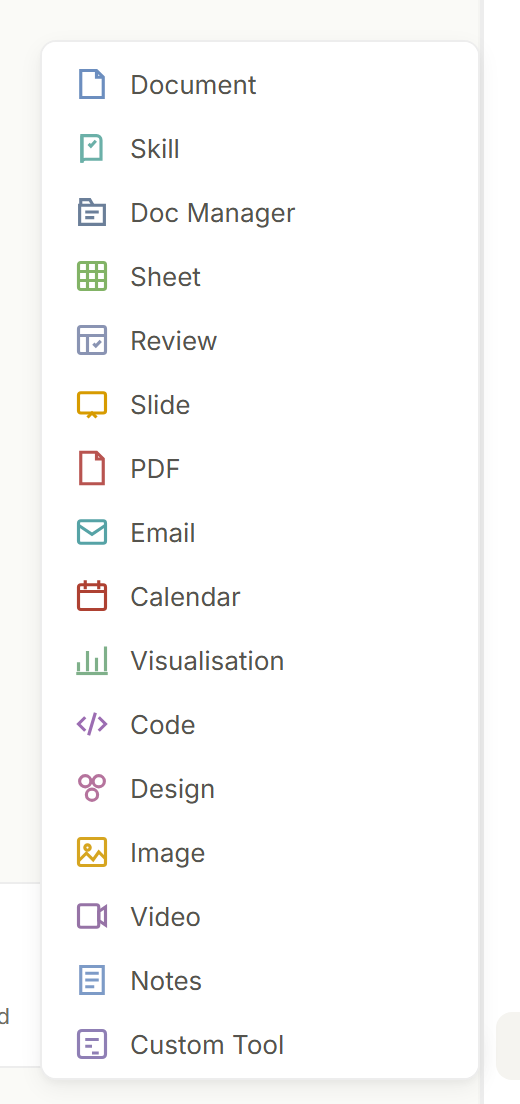
Choose the intended output location before the task begins, especially when a workflow can create or update files.
Try this
✦Before you create anything, tell me the file names you plan to make and confirm the summary will go into a new Sheet, not into the attached pipeline-export.csv. Then build the weekly pipeline summary by owner.
What you getOppermind states the planned outputs first, and the summary opens as a new Sheet in the right-hand pane while your original CSV is left untouched.