
Workflows and apps
Flexible workers
Flexible workers, formerly agents: set a name and goal, keep the job up to date, steer them from chat, read their runs and decide what they can change in your connected accounts.
Updated 26 Oct 2026
Agents are now flexible workers
The Chat and Agents switch is gone. Agents are now flexible workers, and they sit in the sidebar with your chats, strict workers and teams in one list, newest first, with anything waiting on you under Needs you. A flexible worker has a job and decides how to do it each time; AI workers compares it with a strict worker, which repeats taught steps.
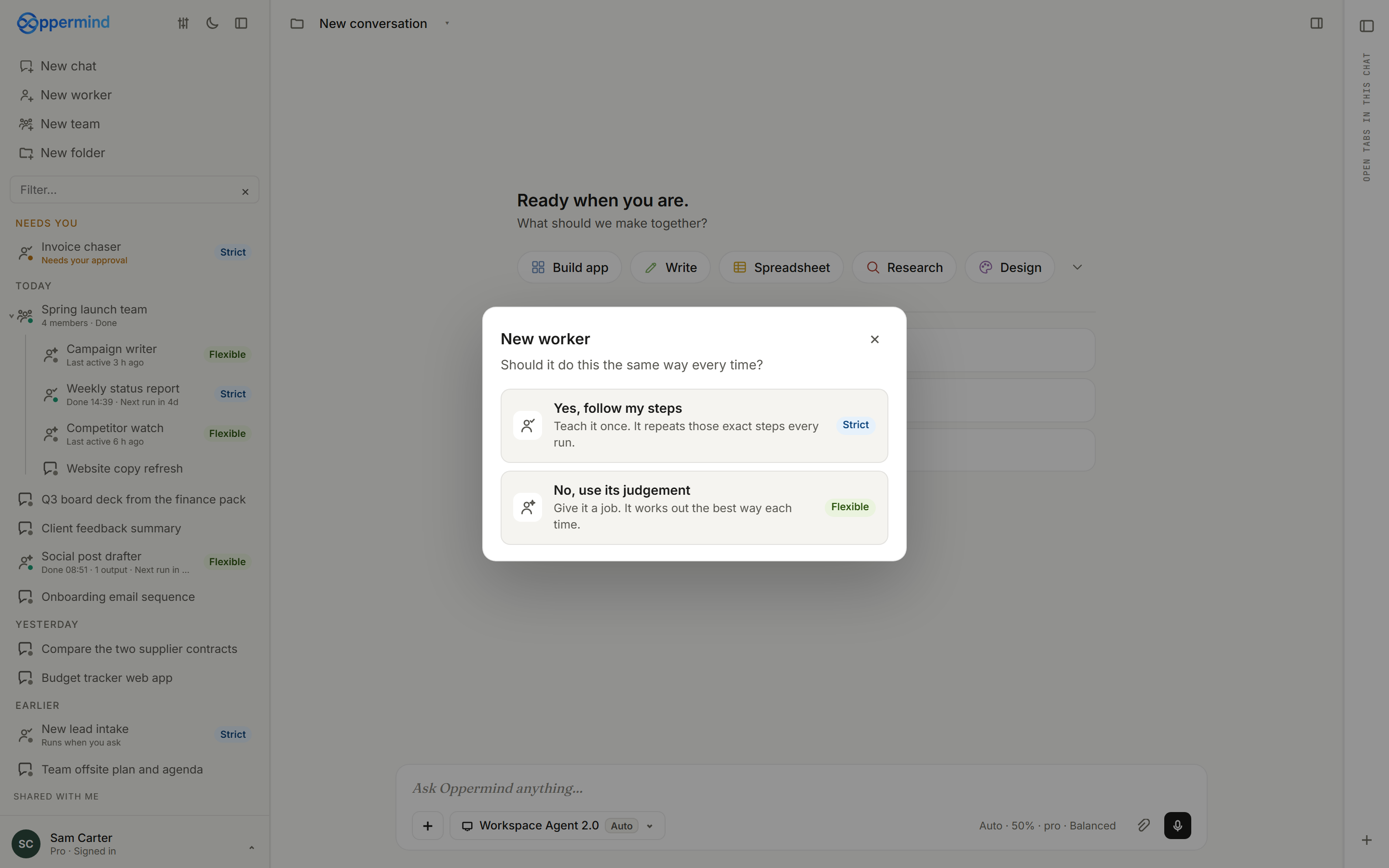
Set its name, goal and timing
A new flexible worker's first card asks for a Name, a Goal and When to work: When I ask, Now, once, On a schedule, When a webhook arrives or When a connected service changes. Start from a template fills these in from a Marketplace worker template for you to check. Continue saves them, and you can change them later in the Job and Settings tabs.
What is my name, and what is my goal?
Keep the job up to date
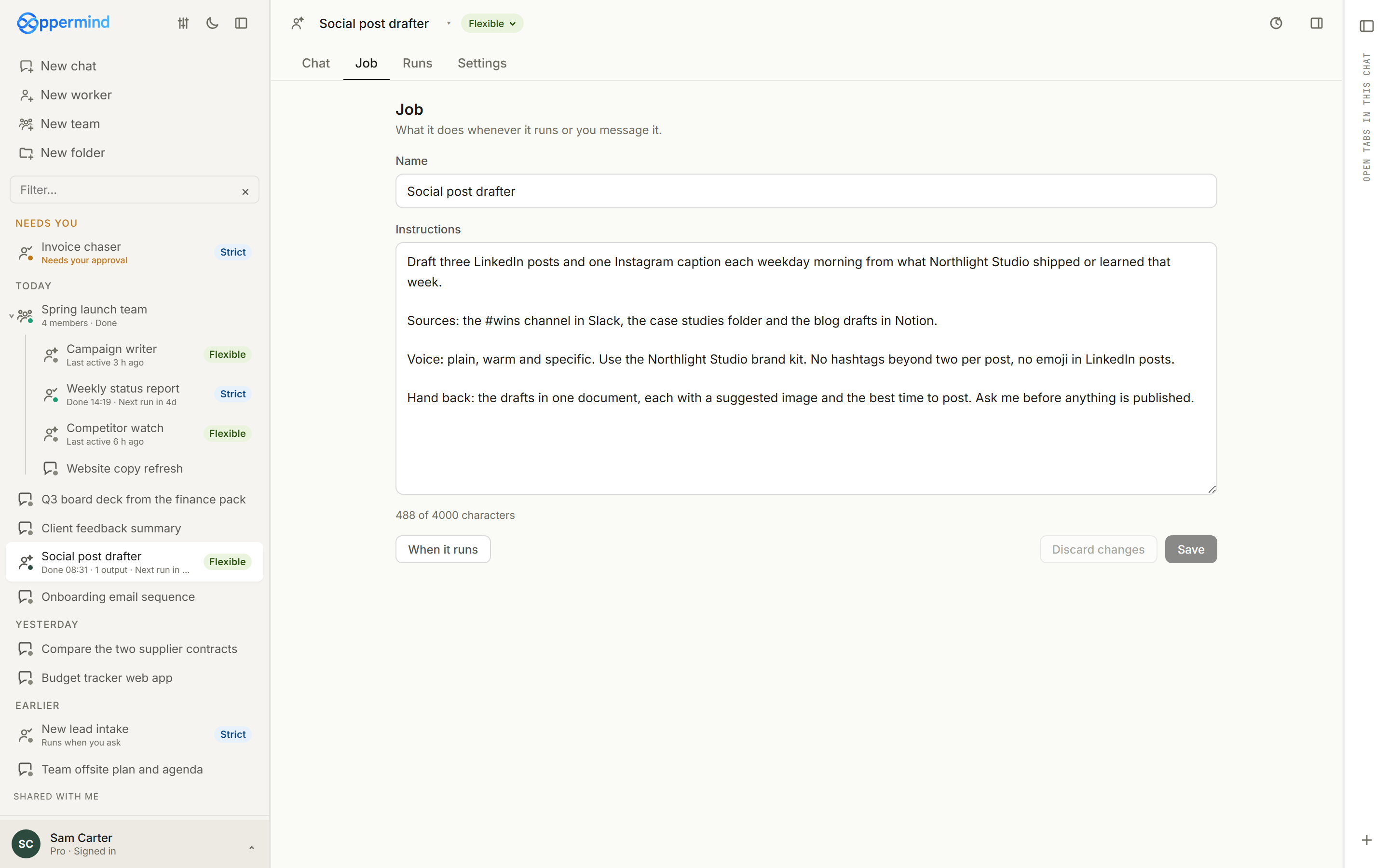
The Job tab holds the worker's Name and Instructions, which it reads whenever it runs or you message it. Edit them and choose Save, or Discard changes to go back, and When it runs takes you to its times. On a phone, a flexible worker has the same Chat, Job, Runs and Settings tabs.
Steer it from Chat
The Chat tab is the worker's conversation: message it to change direction, correct something or ask how it is going. While it is working, point at its sidebar row for Stop. Duplicate worker in the title menu makes a second worker with the same job, for example for a new market.
Read its runs and set its times
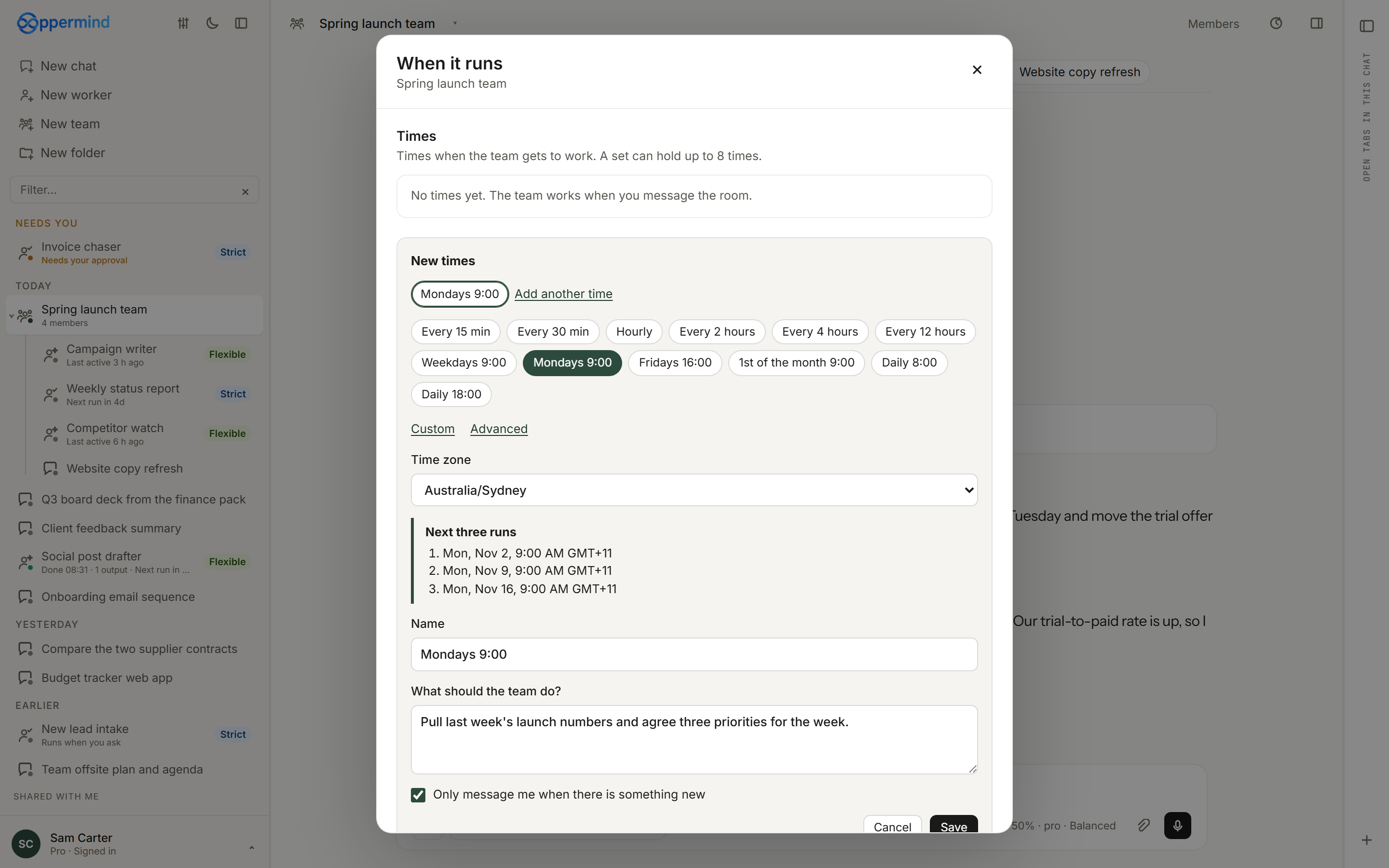
The Runs tab lists what it did from When it runs and the tasks it handed off, newest first; open one to see its conversation or summary. The Settings tab holds When it runs, with sets of up to 8 times, the option Only message me when there is something new, and starts from a webhook or a connected Slack, Gmail, Outlook or GitHub account. AI workers covers the When it runs screen in full.
Decide what it can change
A flexible worker can post, send and update through the accounts you connect. While you are chatting with it, each change waits for your approval; runs from When it runs or a team make changes without asking; and a run started by a webhook or account event makes no changes until you approve them in the chat. Connect only the accounts the job needs, and keep work that sends or publishes on a path you review.
Practise this in Oppermind Academy
Follow the related tutorial or course and apply the concept to a real task.